LM Studio
Best for users who want an easy GUI setup. Load a GGUF model, start the local server in LM Studio, then use http://localhost:1234/v1 in Thaluna.
Local API setup
Thaluna can connect to a local OpenAI-compatible chat completion server. This is useful when you want to use llama.cpp, LM Studio, KoboldCpp, or another local model stack instead of the built-in models, Ollama, or OpenRouter.
http://127.0.0.1:8080/v14096-81920.1-0.3512-2048Example:
llama-server -m model.gguf --port 8080 --ctx-size 8192Thaluna sends short OCR translation requests, so very large context windows are usually not needed.
Use these as starting points. Ports may be different if you changed them in your local server.
| Backend | Base URL in Thaluna | Model ID | API Key |
|---|---|---|---|
| llama.cpp server | http://127.0.0.1:8080/v1 | local-model | Leave empty |
| LM Studio | http://localhost:1234/v1 | Use the model name shown in LM Studio | Leave empty, or use any value if required |
| KoboldCpp | http://localhost:5001/v1 | koboldcpp or local-model | Leave empty, or use any value if required |
Best for users who want an easy GUI setup. Load a GGUF model, start the local server in LM Studio, then use http://localhost:1234/v1 in Thaluna.
Best for users who want a simple single-file GGUF backend. Start KoboldCpp with your model, then use http://localhost:5001/v1 in Thaluna.
Best for advanced users who want speed and control. Example: llama-server -m model.gguf --port 8080 --ctx-size 8192.
Start llama.cpp, LM Studio, KoboldCpp, or another OpenAI-compatible server before selecting Local API in Thaluna.
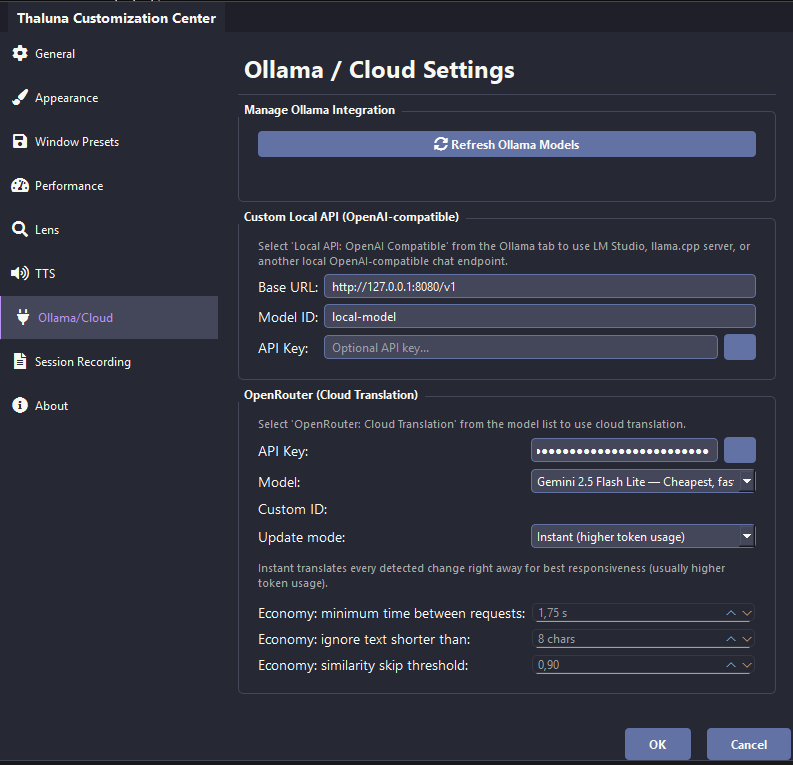
In Thaluna, open Settings -> Ollama/Cloud and set the Custom Local API base URL. For llama.cpp on port 8080, use http://127.0.0.1:8080/v1.
Keep the model ID matching your local server. The default local-model is fine for many local servers.
Most localhost servers do not require an API key. Only fill the key field if your server expects one.
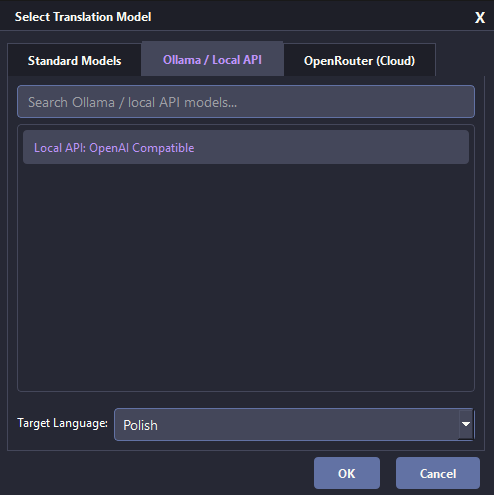
Open the translation model selector, choose Local API, pick your target language, and confirm.
If translation stalls, check the local server console first. A runaway generation can keep the request open until the model reaches its token or context limit.
Before testing in Thaluna, open your local server page, check the server console, or try the model list endpoint in your browser:
http://localhost:1234/v1/models
http://127.0.0.1:8080/v1/models
http://localhost:5001/v1/models
If the page does not load, the server is probably not running, the port is wrong, or the backend does not expose that endpoint.
131072 unless you know you need them, because they can increase VRAM/RAM usage and slow down local inference.| Problem | Likely cause | Fix |
|---|---|---|
| Connection refused | Server is not running or the port is wrong | Start the backend and check the port in the Base URL. |
| 404 Not Found | Wrong base URL | Make sure the URL ends with /v1. |
| Model not found | Wrong model ID | Use the model name shown by your backend or try local-model. |
| Translation never finishes | The model is generating too much text | Lower max tokens and temperature in the backend/client settings. |
| Very slow response | Model too large, CPU fallback, or huge context | Use a smaller model or quantization and keep context around 4096-8192. |
| Out of memory | Not enough VRAM/RAM | Lower context, use Q4/Q5 quantization, or use a smaller model. |
See the Translation Quality Guide for practical recommendations for KoboldCpp, llama.cpp, LM Studio, Qwen3, Gemma 3, Ollama, OpenRouter, and Thaluna's built-in offline models.