Why this happens
The issue is not screen capture itself. It is DPI and coordinate mapping. Above 100%, Windows and Qt can report logical and physical pixels differently, which can offset the captured region even when the overlay window looks visually correct.
What the new DPI fix does
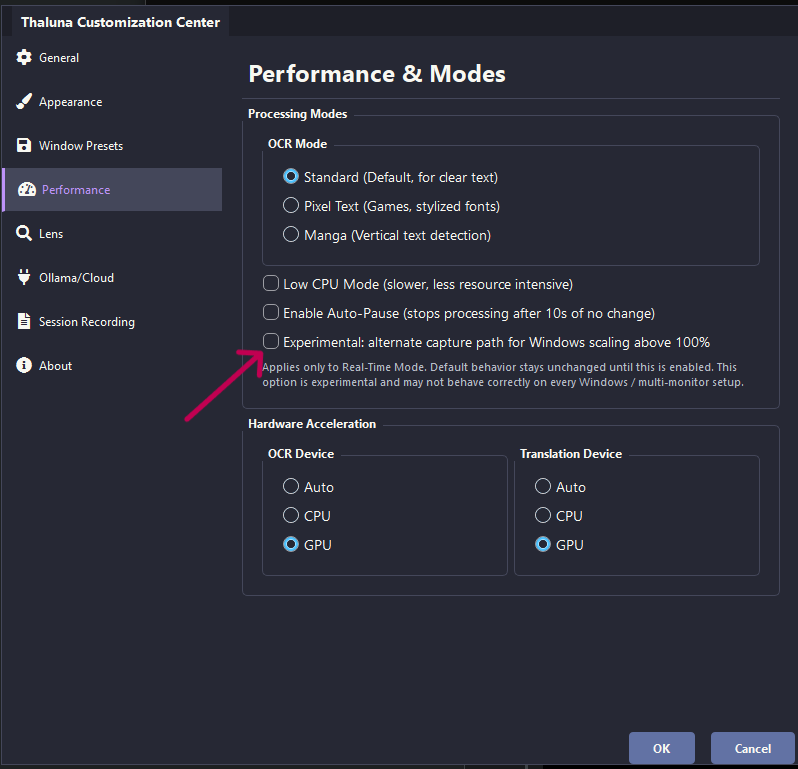
The experimental DPI fix switches the standard real-time workflow to an alternate capture path. It can improve alignment above 100% scaling, but it remains opt-in because different monitor layouts can behave differently.
Why Lens Mode behaves differently
Lens Mode and Continuous Lens can behave differently from the standard real-time capture window because they use separate capture paths internally.
Why this is still not a tiny fix
Even with the new alternate path, scaling support still has to survive different DPI values, single-monitor and multi-monitor setups, mixed scaling, and borderless or fullscreen game behavior.