Low-end laptops without dedicated GPU
Thaluna can still run without a dedicated GPU. OCR works on CPU. Local translation on CPU will be slower, so OpenRouter or Ollama is usually the better translation path.
Hardware compatibility
This page covers the hardware cases users ask about most: laptops without dedicated GPUs, RTX 5000 series cards, OCR device choices, and how Thaluna handles non-ASCII Windows usernames.
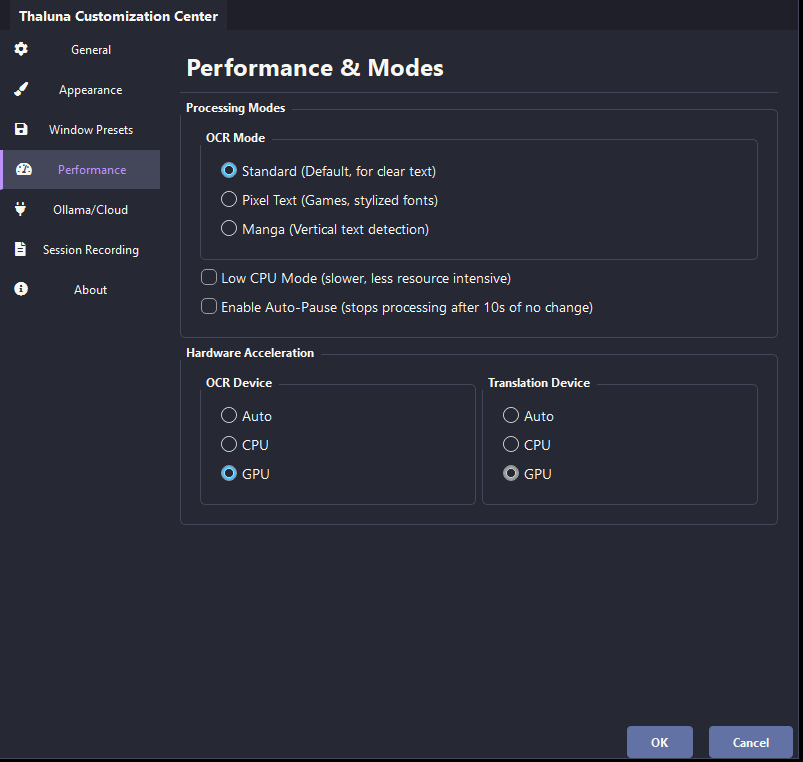
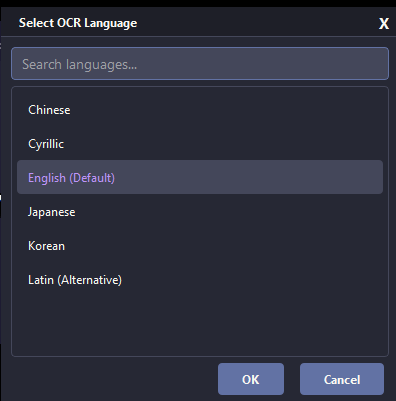
Thaluna can still run without a dedicated GPU. OCR works on CPU. Local translation on CPU will be slower, so OpenRouter or Ollama is usually the better translation path.
Due to upstream framework limitations, built-in OCR acceleration for PaddleOCR and MangaOCR is not currently available on RTX 5000 series GPUs. Recommended setup: OCR Device -> CPU, Translation Device -> CPU, then use an external backend such as KoboldCpp, llama.cpp, LM Studio, Ollama, or OpenRouter.
If your Windows username contains Cyrillic, Arabic, or other non-ASCII characters, Thaluna automatically switches its data path to C:\Users\Public\Thaluna. No manual action is required.
If you see missing DLL or ImportError problems, install Microsoft Visual C++ Redistributable (x64), update your NVIDIA drivers if applicable, and restart the PC after installation.