Video setup guide
Configure OpenRouter in Thaluna
Follow the complete setup from creating an API key to selecting a cloud model, choosing a target language, and testing the result with Game Lens.
Watch the OpenRouter guideCloud translation
OpenRouter lets Thaluna use cloud translation models when you want higher quality than local models alone. This guide covers setup and the most common failure points.
Video setup guide
Follow the complete setup from creating an API key to selecting a cloud model, choosing a target language, and testing the result with Game Lens.
Watch the OpenRouter guide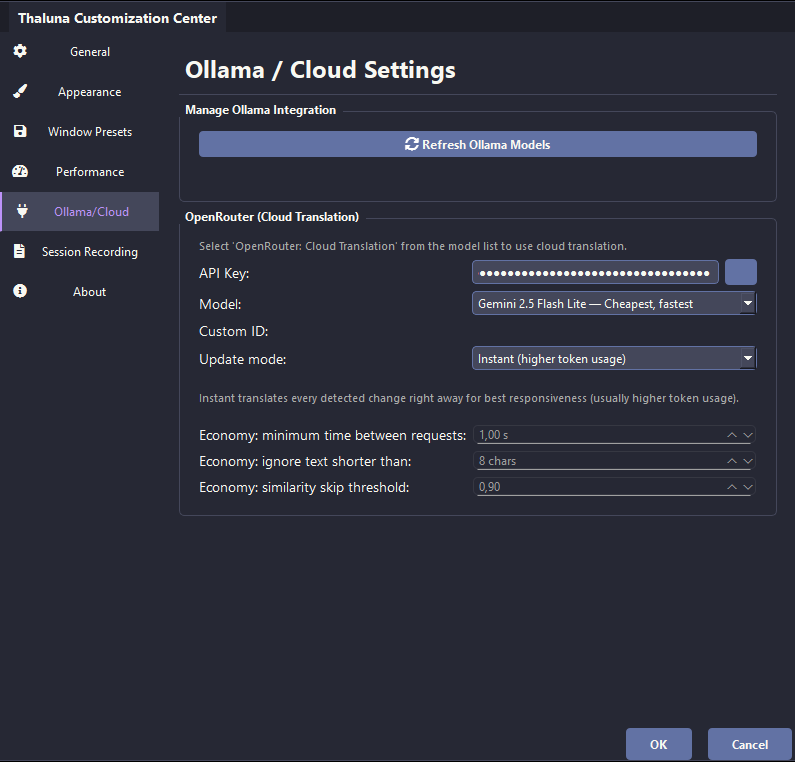
Go to OpenRouter, create an account, and add a small balance. For testing, even a small amount is enough.
Create a new API key in your OpenRouter dashboard and keep it private.
Open Settings → Ollama/Cloud, paste the key, choose a model, and save.
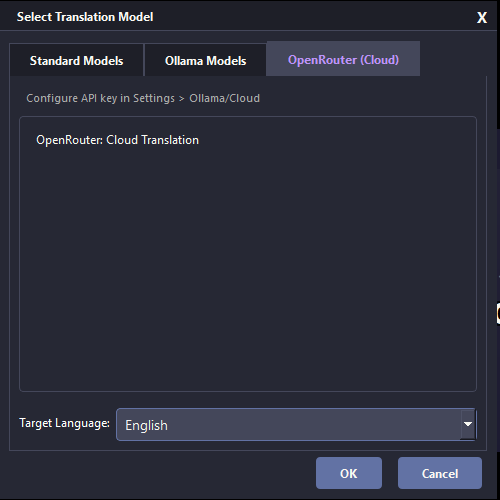
Open the translation model selector, switch to OpenRouter, choose the target language, and confirm with OK.
Thaluna includes presets for Gemini 2.5 Flash Lite, GPT-5.6 Luna with reasoning disabled, GPT-4.1 nano, GPT-4o mini, and other models. For current quality, speed, and price guidance, read the Translation Quality Guide.
%localappdata%\Thaluna\secrets\openrouter_api_key.json matches your current key